



HubSpot for Beginners: A Plain-English Tour of the CRM
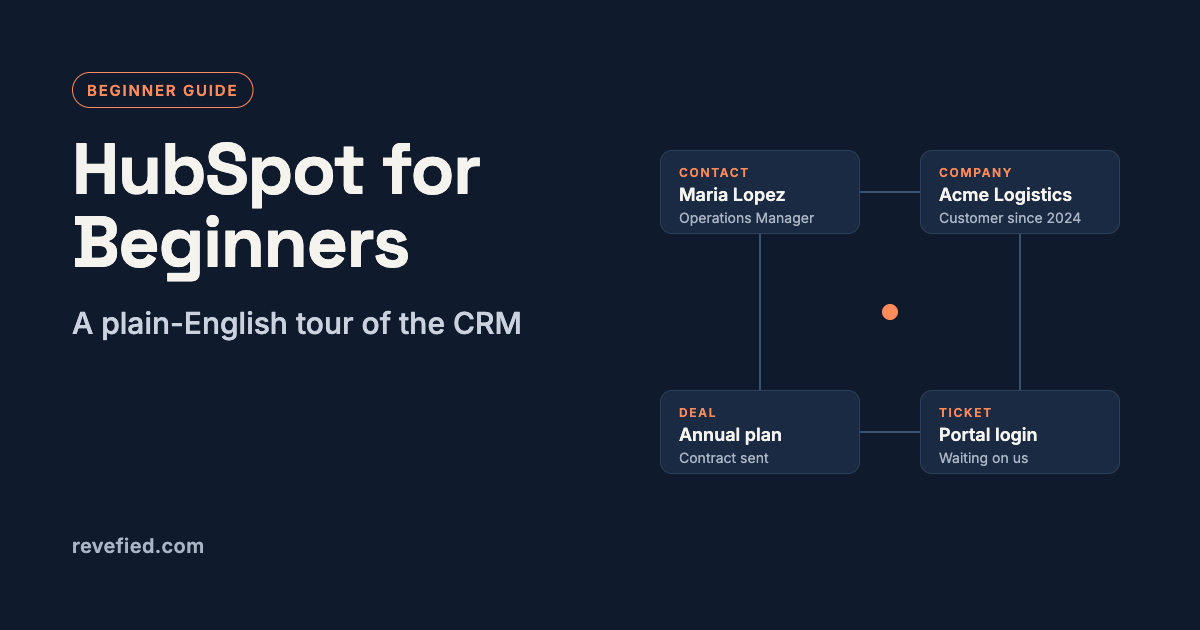
HubSpot is much simpler than it looks once you see that almost everything in it is one of four things: a record, a property, an activity, or a pipeline. Learn those four ideas and the rest of the screen stops being noise.
If you just got a HubSpot login, whether you are in sales, marketing, customer success, support, or you just joined an agency, the first week can feel like walking into a building with no map. There are menus inside menus, tabs you have never heard of, and colleagues using words like "associations" and "lifecycle stage" as if everyone knows what they mean.
This guide is that map. It explains HubSpot in plain English, with no jargon left untranslated and no assumption that you have used a CRM before.
By the end, you will know what each part of HubSpot is for, how the parts connect, and what to do in your first week so the tool starts working for you instead of the other way around.
What a CRM actually is
A CRM (customer relationship management system) is a shared memory for everyone who talks to customers. It stores who your customers are, what you have said to them, and what is likely to happen next.
Without one, that memory lives in inboxes, spreadsheets, sticky notes, and people's heads. When someone goes on vacation or leaves the company, the memory leaves with them. A CRM puts it all in one place that the whole team can see.
A useful way to picture HubSpot is a well-organized address book that also keeps a diary. The address book holds people and companies. The diary holds every email, call, and meeting with them. HubSpot adds a to-do list and a progress board on top, so you can see which deals and support requests are moving and which are stuck.
That is genuinely all a CRM is. Everything else is a feature that helps you fill in, read, or act on that shared memory faster.
The big picture: one CRM, several Hubs
HubSpot is one shared database (the Smart CRM) with a set of team-specific toolkits (the Hubs) plugged into it. Every Hub reads from and writes to the same customer records, which is why marketing, sales, and service can see the same history.
As of late 2026, HubSpot lists six core Hubs on top of the Smart CRM:
|
Hub |
Plain-English job |
Who usually lives in it |
|
Marketing Hub |
Attract people and turn them into leads: emails, forms, ads, campaigns |
Marketing |
|
Sales Hub |
Work leads and close deals: sequences, meetings, quotes, forecasting |
Sales |
|
Service Hub |
Answer and resolve customer issues: help desk, tickets, knowledge base |
Support and customer success |
|
Content Hub |
Build and manage the website, blog, and landing pages |
Marketing and web teams |
|
Data Hub |
Keep data clean, synced, and connected to other tools |
RevOps and admins |
|
Revenue Hub |
Quotes, billing, and payments (older guides call this Commerce Hub) |
Sales, finance, RevOps |
HubSpot also layers AI across the platform under the Breeze name, with an Agent Hub for managing AI agents. You do not need any of that to learn the basics.
Here is the part that matters for a beginner: you do not need to know which Hubs your company pays for to get started. The core CRM, the records and pipelines covered below, looks and works the same no matter which Hubs sit on top. The Hubs change what buttons you have, not how the data is organized.
The four core records: contacts, companies, deals, tickets
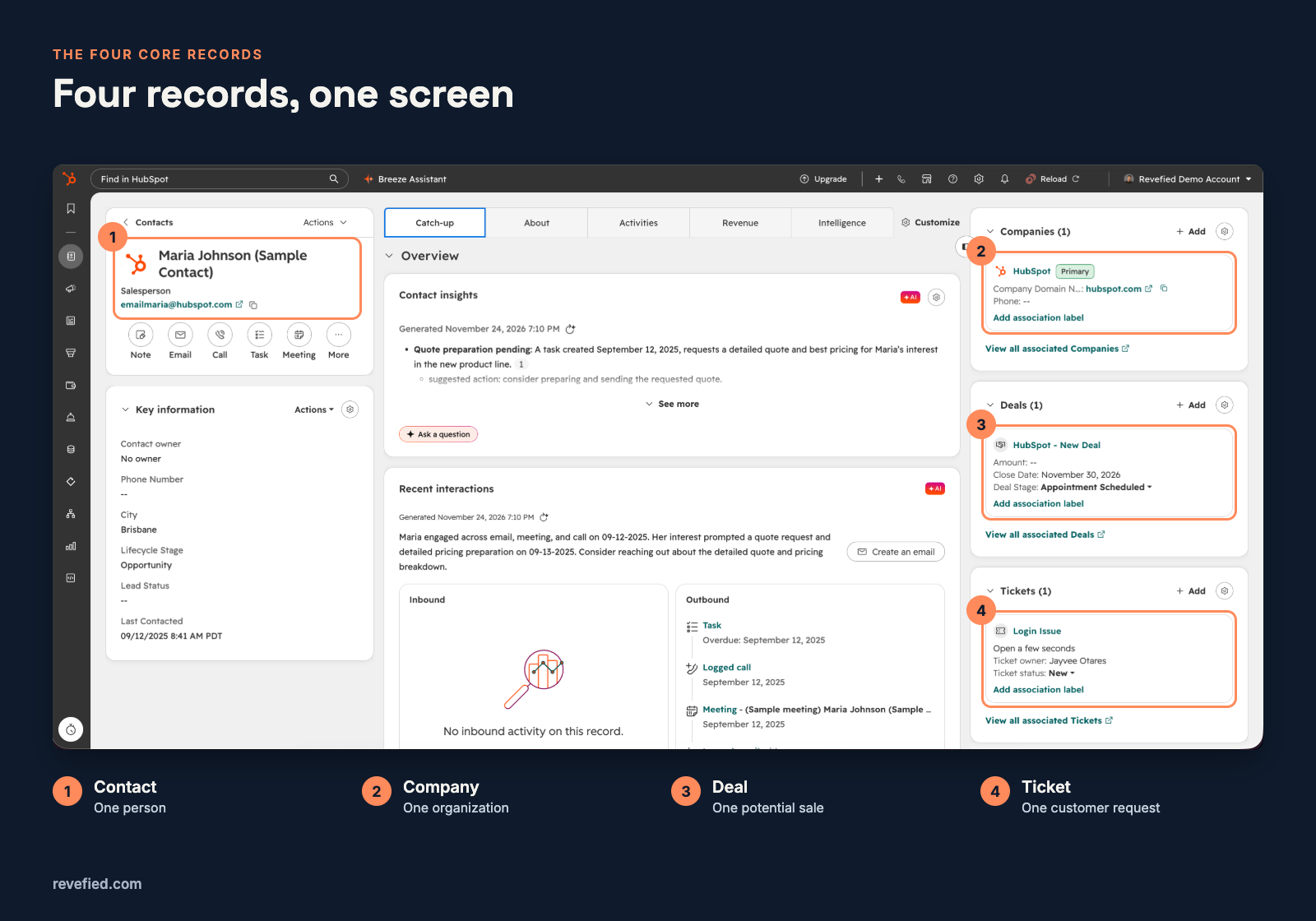
Almost everything you do in HubSpot happens on one of four types of record. HubSpot calls these types "objects"; each individual entry is a "record." If you know which of the four you are looking at, you know where you are.
|
Record |
What it is |
Everyday example |
Who uses it most |
|
Contact |
One person |
Maria Lopez, Operations Manager |
Everyone |
|
Company |
One organization |
Acme Logistics |
Sales, CS, account managers |
|
Deal |
One potential sale, with a value and a stage |
"Acme Logistics, annual plan, $24,000" |
Sales |
|
Ticket |
One customer request or problem |
"Maria can't log in to the portal" |
Support and CS |
A few plain-English rules of thumb help these stick:
- Contacts are people, companies are places they work. Never create a contact called "Acme Logistics." Create the company, then add Maria as a contact at it.
- A deal is an opportunity, not a customer. One company can have many deals over time: a first purchase, a renewal, an upsell.
- A ticket is a problem with a start and an end. It opens when a customer asks for help and closes when the issue is resolved.
Depending on your setup, you may also see other objects such as leads, products, line items, quotes, or custom objects your admin created. They follow the same logic: each is a type of record with its own fields and history.
Associations: how records connect
An association is a link between two records, and it is what turns four separate lists into one customer story. Associate Maria with Acme Logistics, and her emails, deals, and tickets all show up when anyone opens Acme.
You can start from any box and follow the lines. Open the deal and you see who the buyer is; open the ticket and you see which company is affected and whether a deal is in progress.
Associations live in the right-hand sidebar of every record. Get in the habit of checking that sidebar every time you create a record: a contact with no company, or a deal with no contact, is invisible to the reports and teammates who need it.
Properties: the fields that hold your data
A property is a single piece of information stored on a record, like a column in a spreadsheet. First name, email, phone number, deal amount, and close date are all properties.
HubSpot comes with hundreds of default properties, and your admin can add custom ones (for example, "Number of trucks" for a logistics company). You will usually see a handful pinned in the left sidebar of a record, with the rest a click away under "View all properties."
Three default properties are worth learning on day one, because so much reporting and automation depends on them:
- Contact owner / Deal owner / Ticket owner. The person responsible for that record. If you own it, you are expected to act on it.
- Lifecycle stage. Where a contact or company sits in the overall customer journey, from subscriber and lead through to customer. It answers "how close is this person to buying, or have they already?"
- Lead status. A sales-team label for what is happening with a lead right now, such as new, attempted to contact, or connected.
The most important habit with properties is simple: if a field is in a dropdown, use the dropdown. Free-typed values like "Texas," "TX," and "tx" look the same to a person but break filters, lists, and reports.
Activities and the timeline: the record's diary
Activities are everything that happens with a record: emails, calls, meetings, notes, and tasks. They appear in date order on the record's timeline, usually in the middle of the screen, so anyone can catch up in a minute.
The main activity types you will use:
- Notes. Quick written context: "Maria prefers calls after 2 p.m." or "Budget approved for Q1."
- Emails. Sent from HubSpot, or logged automatically if your inbox is connected.
- Calls and meetings. Logged with an outcome, so others know what was discussed.
- Tasks. Reminders with a due date, such as "Send proposal Friday." Tasks also show up in your own task queue.
The timeline is where a CRM earns its keep. When a colleague is out sick and their customer calls, you should be able to open the record and see exactly what was promised. That only works if people log their activity, which is why "if it isn't in HubSpot, it didn't happen" is a common rule on good teams.
Pipelines and stages: the progress board
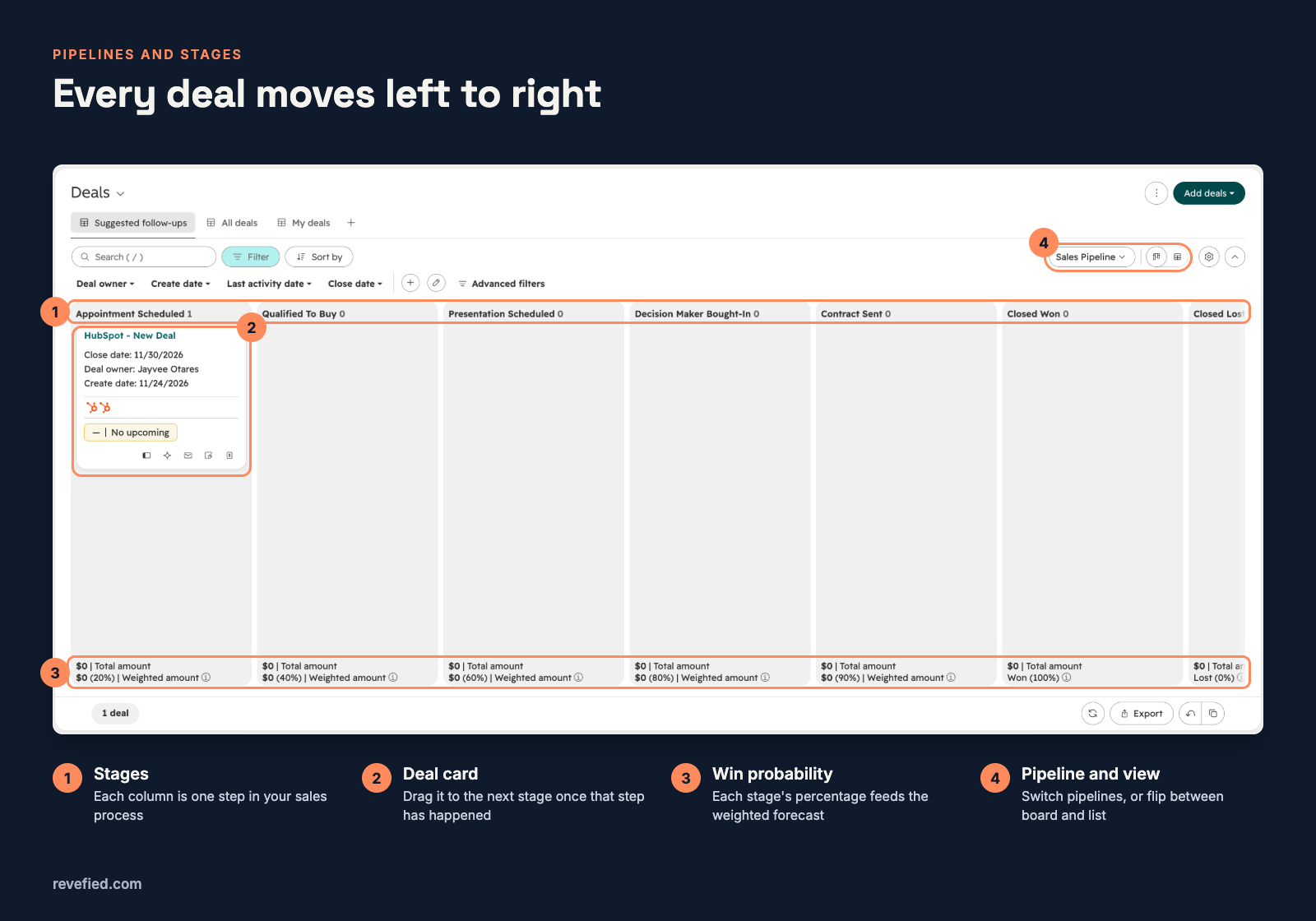
A pipeline is the series of steps a deal or ticket moves through from start to finish. Each step is a stage, and the board view shows every record as a card you can drag from one column to the next.
HubSpot's default sales pipeline has stages along these lines (your company has probably renamed them):
- Appointment scheduled
- Qualified to buy
- Presentation scheduled
- Decision maker bought-in
- Contract sent
- Closed won, or closed lost
 Ticket pipelines work the same way for support, with stages such as new, waiting on contact, waiting on us, and closed.
Two things beginners often miss:
- Stages should describe what has happened, not what you hope will happen. Move a deal to "Contract sent" when the contract is actually sent.
- Stages drive forecasts. Each deal stage can carry a win probability, so leaving deals in the wrong stage quietly skews the sales forecast your leaders rely on.
Finding your way around
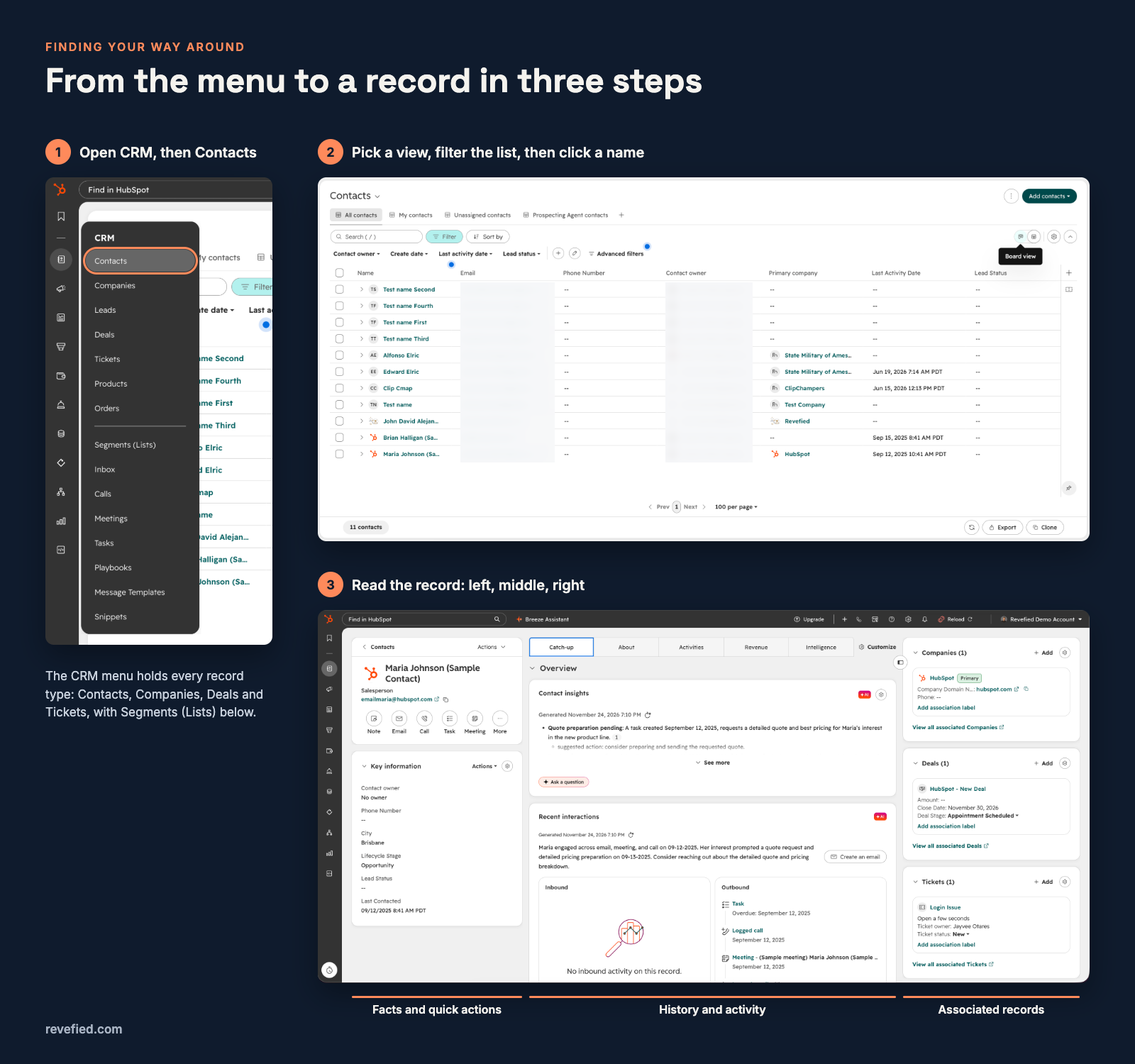
You only need three screens to do most daily work: the main navigation, the list of records (the index page), and a single record page. Exact labels shift as HubSpot updates its interface, but the layout below has been stable.
The main navigation runs down the left side of the screen. Under CRM you will find Contacts, Companies, Deals, and Tickets, plus menus for marketing, sales, service, and reporting depending on your Hubs. The search bar at the top finds any record by name or email, and the settings gear lives in the top corner.
The index page is the spreadsheet-style list you see when you click Contacts or Deals. A few controls make it far more useful:
- Views are saved tabs such as "My contacts" or "Deals closing this month." Use your team's shared views before building your own.
- Filters narrow the list by any property, for example "Lifecycle stage is Lead and Contact owner is me."
- Board view (for deals and tickets) switches the list into the pipeline columns described above.
The record page opens when you click a single record, and it is usually split into three columns:
|
Area |
What it shows |
What you do there |
|
Left sidebar |
Key properties and quick actions (note, email, call, task, meeting) |
Edit details, log activity |
|
Middle |
Overview and the activity timeline |
Catch up on history, add notes |
|
Right sidebar |
Associated records (companies, deals, tickets, contacts) |
Jump to related records, add links |
Once you can read a record page in that order, left for facts, middle for history, right for relationships, you can work in any part of HubSpot.
Lists, reports, and dashboards at a glance
Once data is in the CRM, three tools help you get it back out. You do not need to build any of them in week one, but you should know what they are when someone mentions them.
- Segments. A saved group of records that match rules, such as "all customers in Texas." Active lists update themselves as records change; static lists stay frozen as a snapshot. Marketing uses them for emails; everyone uses them for targeting.
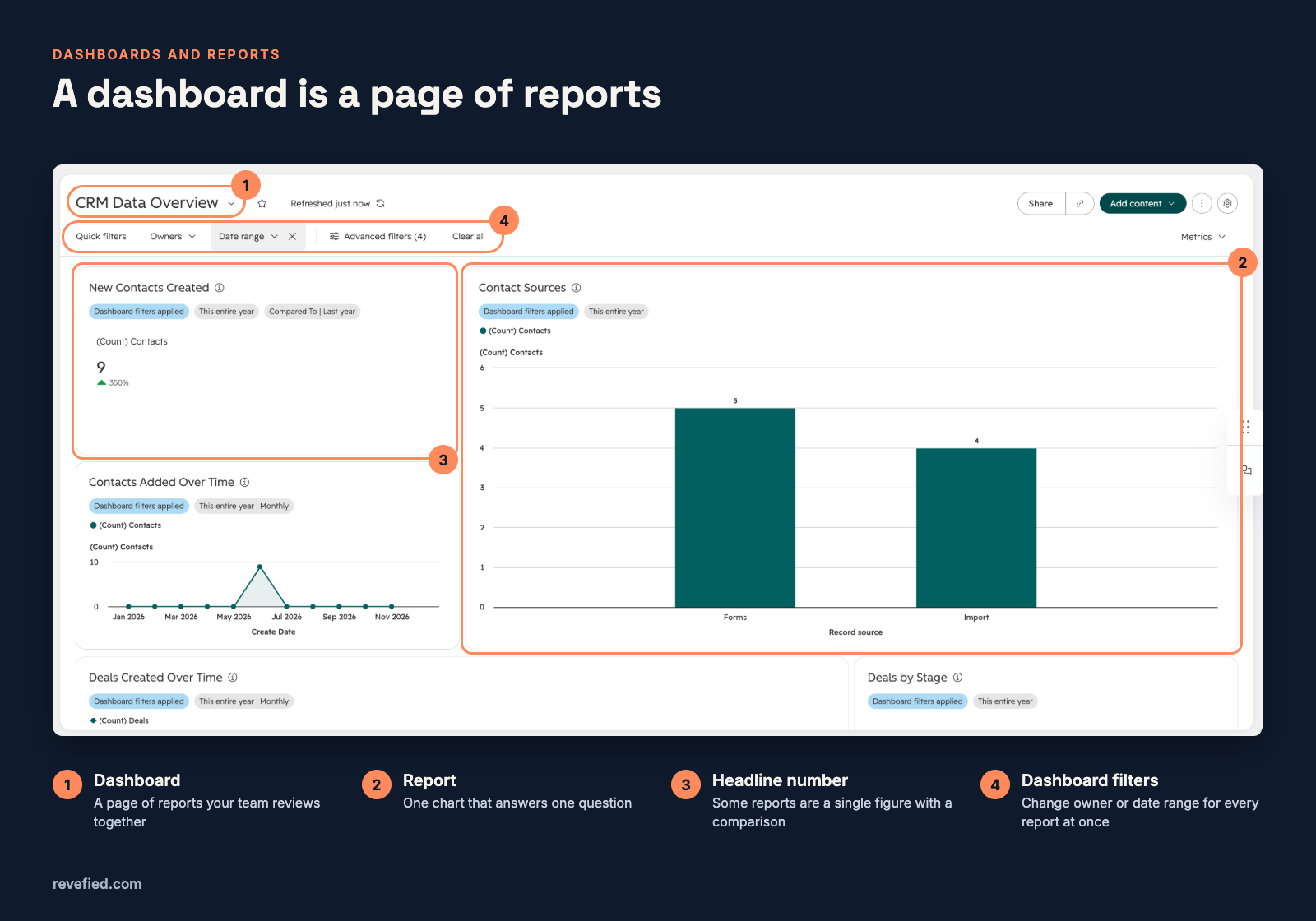
- Reports. A single chart or table answering one question, like "deals won this quarter by owner."
- Dashboards. A page of reports grouped together. Your manager probably has a team dashboard, so ask for the link and bookmark it.
The quality of every list, report, and dashboard depends on the records, properties, and stages underneath. That is why the basics above matter more than any report you will ever build.
Common beginner mistakes (and the fix)
Most messy HubSpot accounts are not caused by bad software. They come from a few small habits repeated by many people. Avoid these five and you will already be ahead of many experienced users.
- Creating duplicates. Search by email or company domain before adding a new record. If a duplicate slips through, ask your admin to merge rather than deleting one.
- Leaving records unassociated. A deal with no contact or company attached is an orphan. Always check the right sidebar before you save.
- Logging nothing. Calls and meetings that happen outside HubSpot vanish from the team's memory. Log a one-line note at minimum.
- Typing over dropdowns or misusing fields. Put information in the property built for it, not in notes or the wrong field, so filters and reports can find it.
- Letting deals go stale. A deal with a close date three months in the past is noise. Update the stage and date, or close it as lost with a reason.
Your first-week checklist
Work through this list in your first five days and HubSpot will feel familiar by Friday. Each step takes 15 minutes or less.
- Complete your user profile and set your time zone and email signature.
- Connect your inbox and calendar so emails and meetings log automatically.
- Open five records you own and read each one left, middle, right.
- Find your team's saved views for contacts and deals (or tickets) and pin them.
- Open the board view of your main pipeline and ask a teammate what each stage really means at your company.
- Log one note, one call, and one task on a real record.
- Create one contact correctly: search first, associate it with its company, fill in the owner and lifecycle stage.
- Install the HubSpot mobile app so you can check records between meetings.
- Ask your manager for the dashboard your team reviews each week.
- Write down three questions about how your company uses HubSpot and bring them to your next one-on-one.
Plain-English glossary
Keep this table handy for the first few weeks; it covers the words you will hear most.
|
Term |
What it means in plain English |
|
Activity |
Anything logged on a record: email, call, meeting, note, or task |
|
Association |
A link between two records, like a contact and their company |
|
Board view |
A pipeline shown as columns of cards you can drag between stages |
|
CRM |
Shared customer memory for the whole team |
|
Dashboard |
A page of reports grouped together |
|
Deal |
One potential sale, with a value and a stage |
|
Hub |
A team-specific toolkit (Marketing, Sales, Service, and so on) on top of the CRM |
|
Index page |
The spreadsheet-style list of all records of one type |
|
Lifecycle stage |
Where a contact or company is in the journey, from subscriber to customer |
|
List / Segment |
A saved group of records that match rules |
|
Object |
A type of record: contacts, companies, deals, tickets, and others |
|
Owner |
The person responsible for a record |
|
Pipeline |
The ordered steps a deal or ticket moves through |
|
Property |
One field of information on a record |
|
Record |
One individual entry, such as one contact or one deal |
|
Ticket |
One customer request or problem, from open to resolved |
|
Timeline |
The date-ordered history of activities on a record |
|
View |
A saved, filtered version of an index page |
Where to go from here
You now have the map: records hold the who, properties hold the facts, activities hold the history, associations hold the relationships, and pipelines show the progress. Get comfortable with those five ideas and every other HubSpot feature becomes much easier to learn.
If your team already uses HubSpot but it feels cluttered, inconsistent, or underused, you are not alone, and it is usually fixable. That is exactly the work we do at Revefied. Until then, bookmark this guide and share it with the next new hire who asks, "So what am I looking at?"
Source: product lineup from HubSpot's customer platform page, checked November 2026. HubSpot updates its interface often, so exact labels may differ in your account.

Comments